[rank_math_breadcrumb]
Google Search Console (GSC) is a free tool provided by Google that helps website owners, SEO professionals, and developers monitor and optimize their website’s visibility in Google Search results. Here’s how you can use it effectively for SEO optimization:

Key Features of Google Search Console for SEO
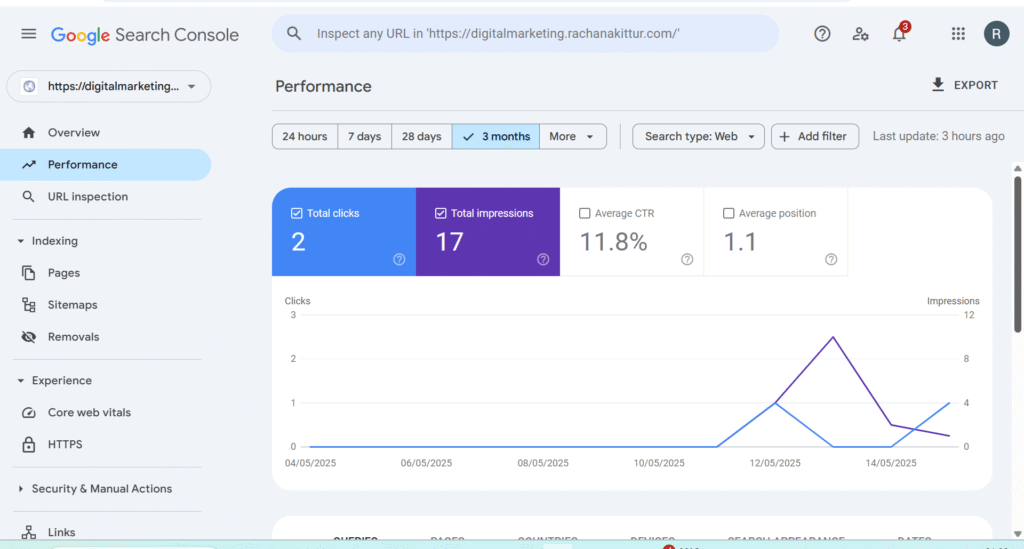
1. Performance Report
- What it does: Shows how your site performs in Google Search—clicks, impressions, CTR, and average position.
- SEO actions:
- Identify top-performing keywords and pages.
- Spot low CTR pages and improve titles/meta descriptions.
- Monitor mobile vs. desktop performance.
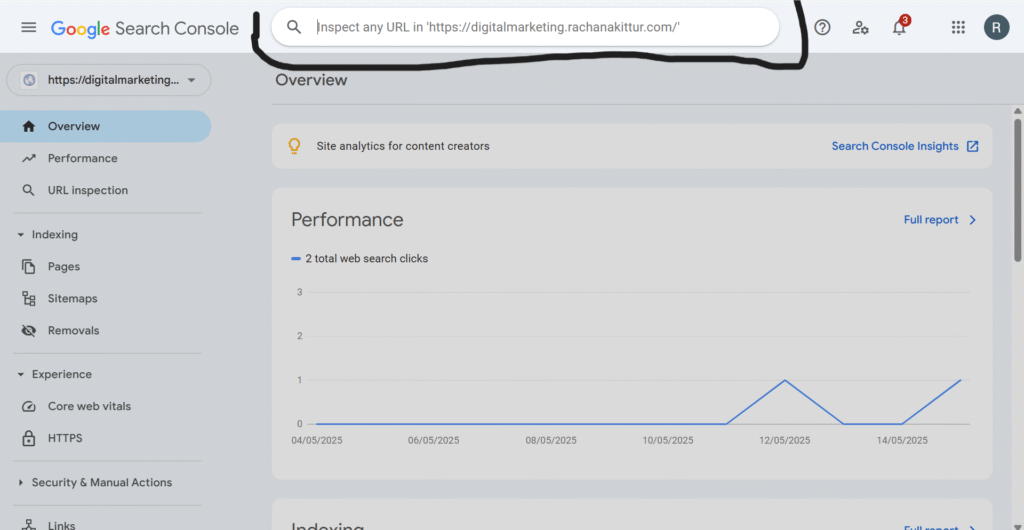
2. URL Inspection Tool
- What it does: Analyzes specific URLs to check indexing status and issues.
- SEO actions:
- Confirm if pages are indexed.
- Submit new or updated content for indexing.
- Identify and fix indexing or crawling issues.
3. Coverage Report
- What it does: Displays indexation status of all URLs on your site.
- SEO actions:
- Fix errors like 404s, redirect loops, or server errors.
- Clean up excluded pages (duplicate, noindex, etc.).
- Ensure important pages are not accidentally blocked.
4. Sitemaps
- What it does: Lets you submit XML sitemaps to guide Google’s crawling.
- SEO actions:
- Submit your sitemap regularly.
- Monitor for errors or outdated pages.
- Include only valuable and index-worthy URLs.
5. Mobile Usability
- What it does: Shows mobile-specific issues that may hurt user experience.
- SEO actions:
- Fix mobile errors (text too small, clickable elements too close, etc.).
- Ensure mobile responsiveness across devices.
6. Core Web Vitals
- What it does: Reports on real-world performance (loading, interactivity, layout shifts).
- SEO actions:
- Improve LCP (loading speed), FID (input delay), and CLS (visual stability).
- Collaborate with developers to enhance speed and UX.
7. Links Report
- What it does: Lists internal and external links to your site.
- SEO actions:
- Monitor for spammy backlinks.
- Ensure internal linking supports SEO strategy.
- Identify top-linked content.
8. Manual Actions & Security Issues
- What it does: Alerts you if Google penalizes your site or detects security problems.
- SEO actions:
- Resolve manual penalties (e.g., unnatural links).
- Clean hacked content or malware warnings immediately.
What You Can Do with Google Search Console
Here are the main uses of Google Search Console (GSC), especially for improving SEO, tracking performance, and maintaining your website’s health in Google Search:
Monitor Site Performance in Google Search
- View search traffic data: clicks, impressions, click-through rate (CTR), and average position.
- See which queries (keywords) bring users to your site.
- Analyze performance by device, country, and page.
Submit and Monitor Sitemaps
- Help Google discover your pages faster.
- Check for errors or warnings in your sitemap.
Check URL Indexing Status
- Inspect individual URLs to see if they’re indexed.
- Request indexing of new or updated content.
Fix Indexing and Crawl Errors
- View which pages are not indexed and why (404s, redirects, etc.).
- Understand crawl issues and fix them to improve visibility.
Enhance Mobile Usability
- See mobile-specific usability issues like text too small or clickable elements too close.
Improve Page Experience
- Get reports on Core Web Vitals (loading, interactivity, visual stability).
- Improve user experience and meet Google’s page speed expectations.
Track Internal and External Links
- See which pages get the most backlinks.
- Review how your internal linking is structured.
Get Alerts for Manual Actions or Security Issues
- Be notified if your site receives a penalty or gets hacked.
How to Get Started
- Go to Google Search Console
- Sign in with your Google account.
- Add and verify your site using one of the methods:
- HTML file upload
- Meta tag in your site’s
<head> - Domain name provider
- Google Analytics or Google Tag Manager
- Submit your sitemap (
yourdomain.com/sitemap.xml) once verified.
Pro Tips for SEO Optimization
- Use filters in the performance report to segment data (e.g., by device, country, query).
- Combine GSC with Google Analytics for deeper insights.
- Use regular expressions (regex) in performance reports to refine keyword filtering.
- Monitor changes after site updates or migrations (e.g., domain or HTTPS transitions).
For detail information about Google search console visit https://digitalmarketing.rachanakittur.com/